Invite Fundraisers to Your Campaign
Add community fundraisers and co-admins to your team.
Invite Fundraisers to Your Campaign
Add community fundraisers to your campaign so each person can share their own personal calendar.
Overview
Community fundraisers are the heart of your campaign. Each person you invite receives their own personal pick a date calendar to share with their circle — friends, family, coworkers, and neighbors.
As the organizer, your job is to:
- Invite people to join
- Point them to their setup and sharing tools
- Nudge anyone who stalls
This guide covers inviting fundraisers. For inviting a co-admin to help manage the org hub, see Invite a co-admin below.
Step 1: Open the Fundraisers page
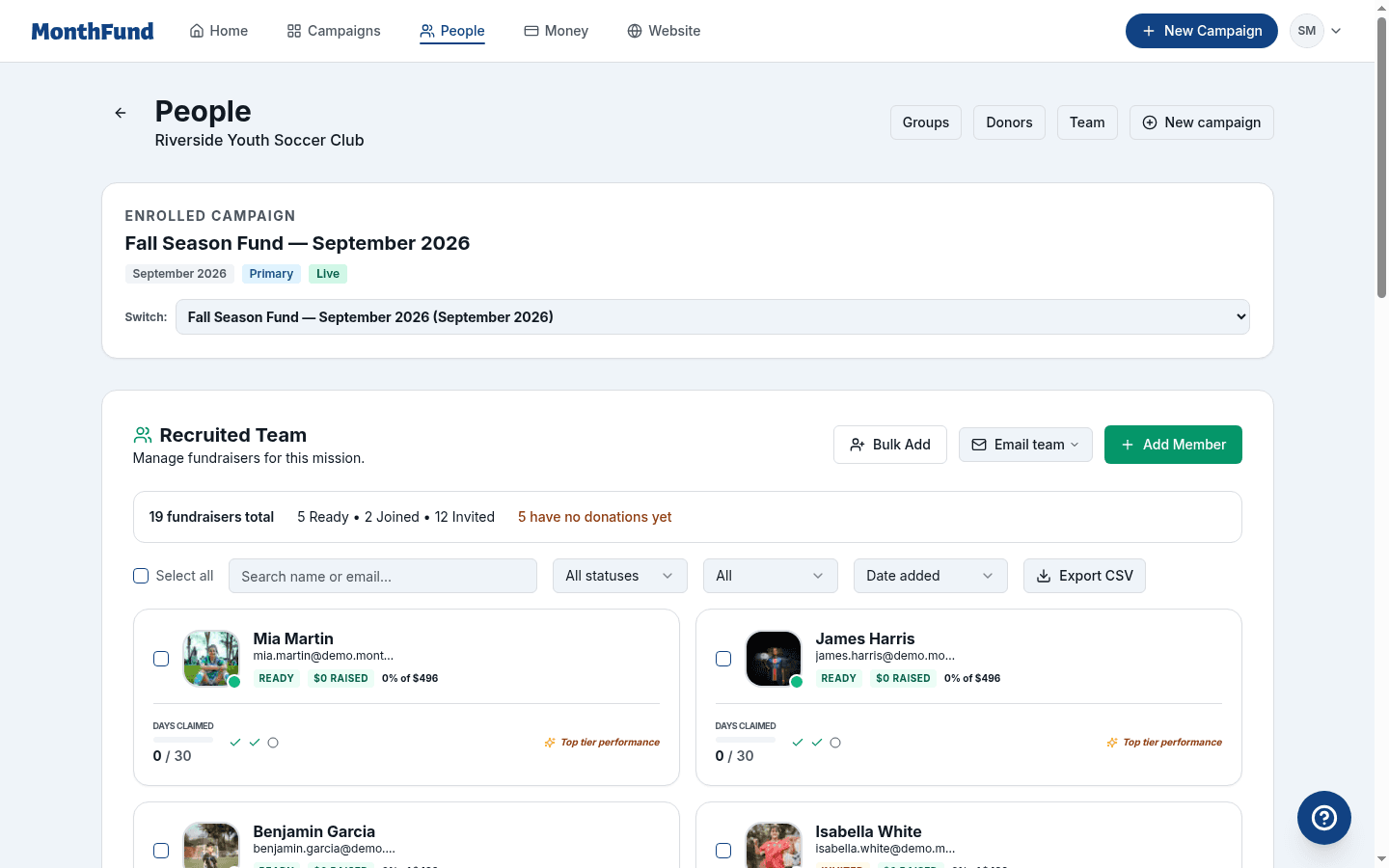
- Log in to your org hub dashboard.
- Click Fundraisers in the sidebar navigation.
- You'll see your current roster (empty if you're just starting).
Step 2: Add fundraisers individually
For small groups or one-off additions:
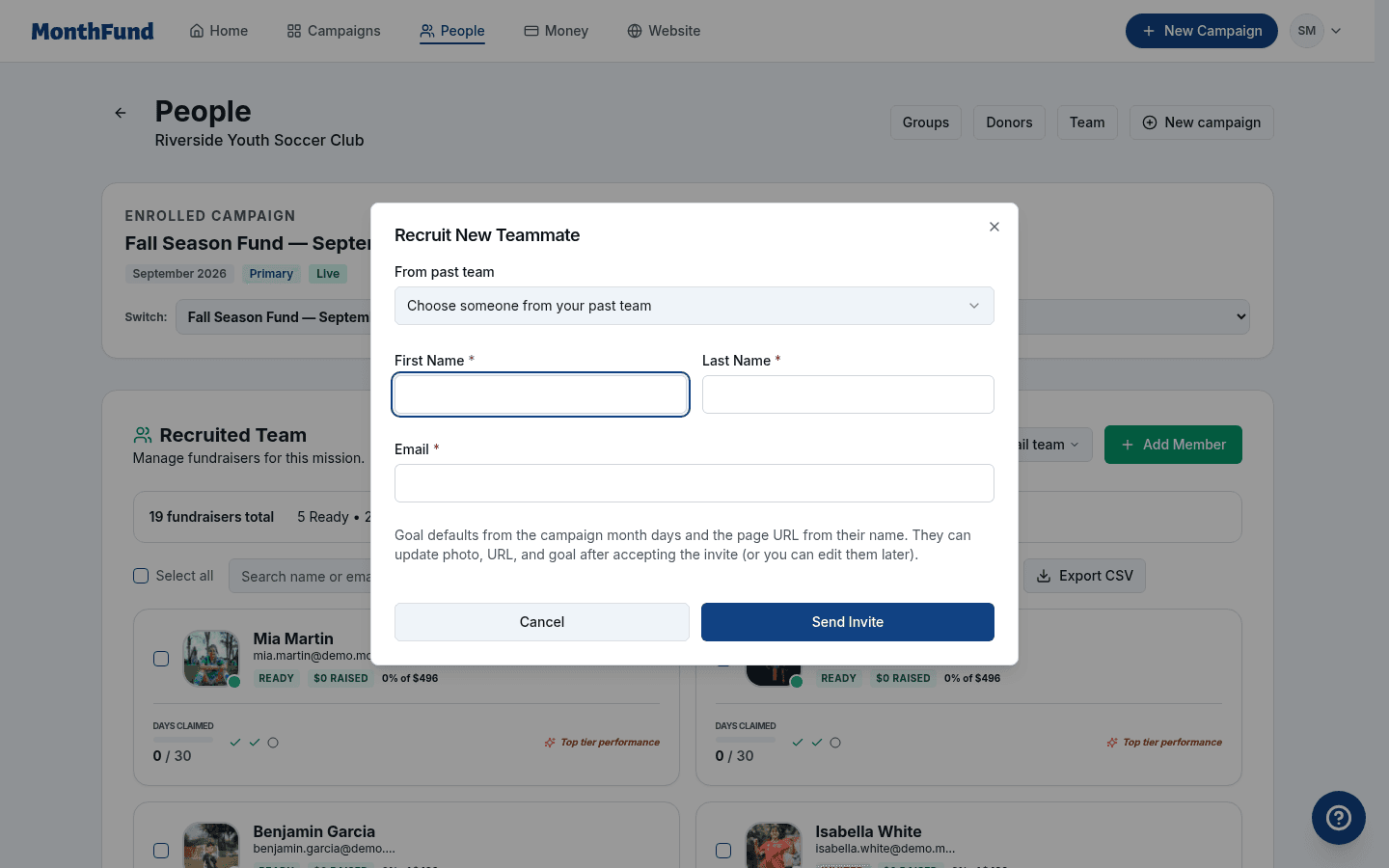
- Click Add Fundraiser (or the "+" button).
- Enter the person's name and email address.
- Click Send Invite.
The person receives an email with a join link. That link stays valid for 30 days.
Step 3: Add fundraisers in bulk
For larger groups (teams, classes, full rosters):
- Click Bulk Add on the Fundraisers page.
- Choose one of these methods:
- Paste a list — One name and email per line, separated by comma or tab
- Import CSV — Upload a spreadsheet with Name and Email columns
- Review the preview to confirm names and emails look correct.
- Click Send Invites.
Tip: For 50+ fundraisers, invites are processed in batches (every 2 minutes). Fundraisers appear in your roster as invites are sent.
CSV format example
Name,Email
Jordan Smith,jordan@example.com
Alex Chen,alex@example.com
Taylor Johnson,taylor@example.com
Step 4: Use "From past team" for returning fundraisers
If someone carried a calendar in a previous campaign, you don't need to send a cold invite:
- Click From past team on the Fundraisers page.
- Select people from your previous campaigns.
- Add them to the current campaign.
They keep their existing identity and can start sharing immediately.
Step 5: Check invite status and resend
After sending invites, monitor who has joined:
- Return to the Fundraisers page.
- Each row shows a status:
- Invited — Email sent, waiting for them to open the join link
- Joined — They've accepted but haven't completed their profile
- Ready — Profile complete, can share their calendar
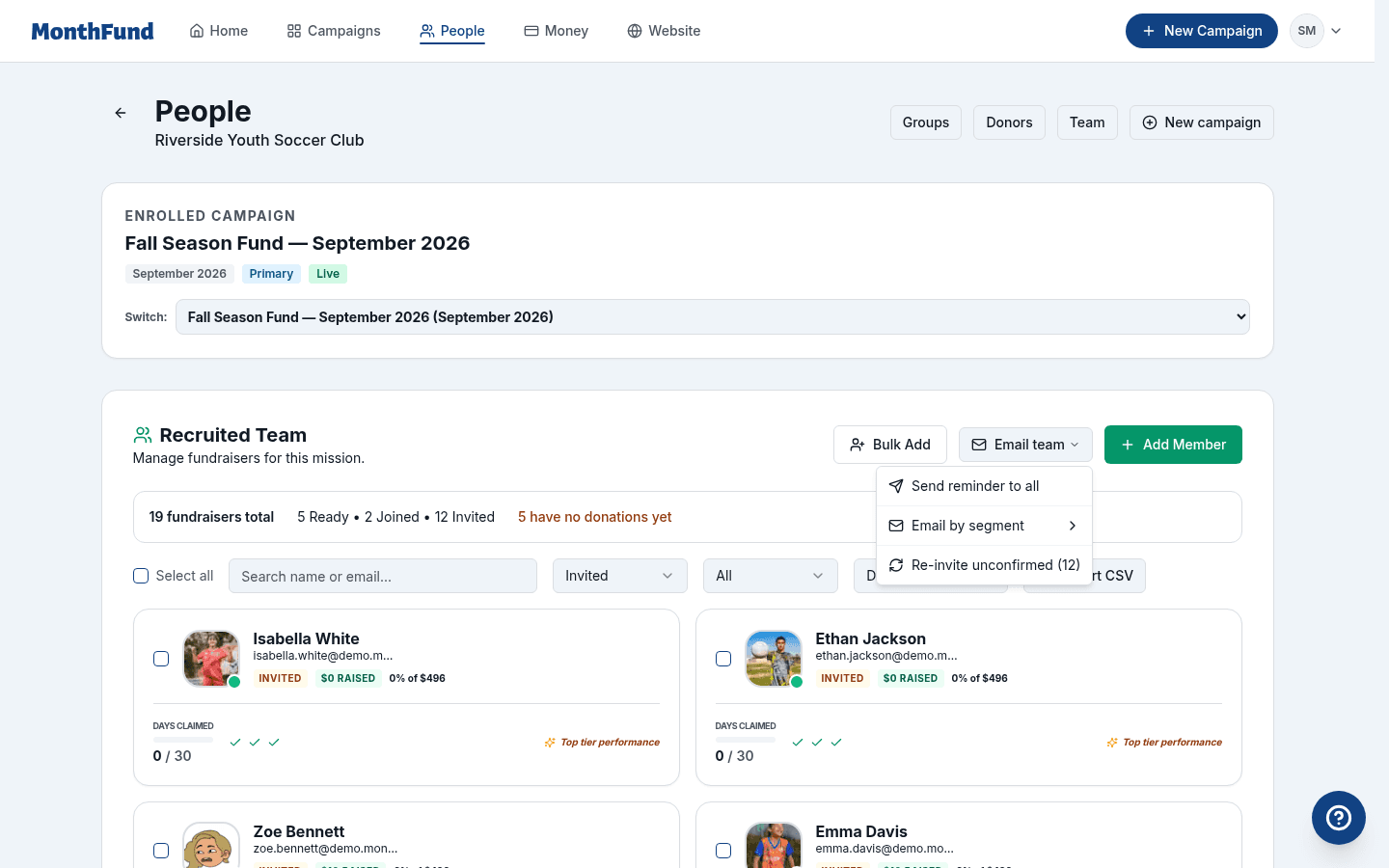
Resend an invitation
If someone can't find their invite email:
- Find them in the roster.
- Click the ⋮ menu (or row actions).
- Select Resend invitation.
A new join link is sent. The previous link becomes invalid.
Note: Community fundraisers can also request their own resend from
/login?help=accessif they have the email address they were invited with.
What fundraisers see after accepting
When a fundraiser clicks the join link in their email:
- Join page — Shows your organization name and a Continue button.
- Short setup — They can add a profile photo and short introduction (both optional).
- Their dashboard — Personal calendar, sharing link, QR code, message templates, and Social Kit.
Point them to these tools
After setup, fundraisers find everything they need on their Share page:
- Personal calendar link — Their unique URL to share
- QR code — For in-person events or printed materials
- Message templates — Ready-to-send text for different situations
- Social Kit — Branded graphics for Instagram Stories, Feed posts, and more
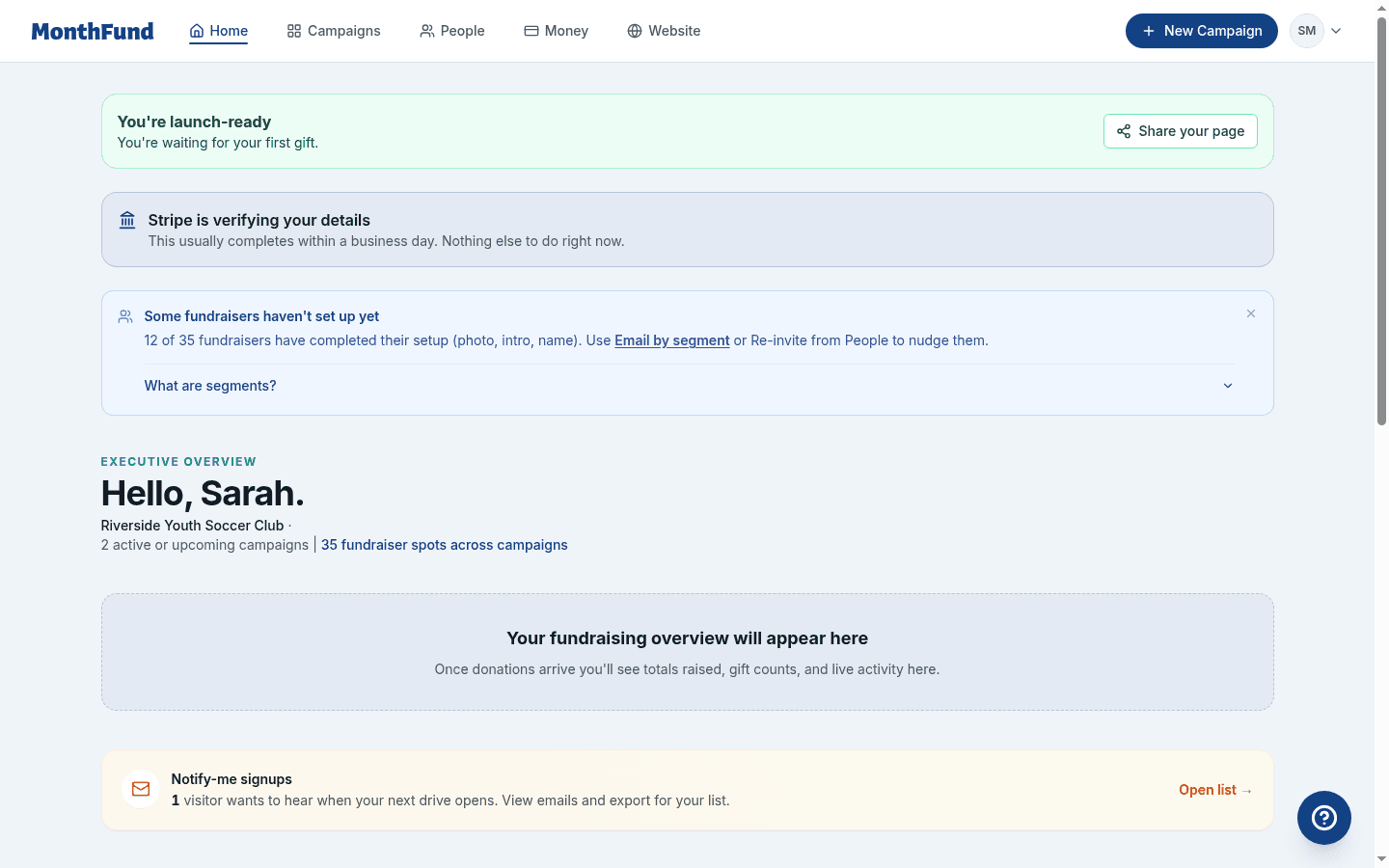
Use the action queue for follow-ups
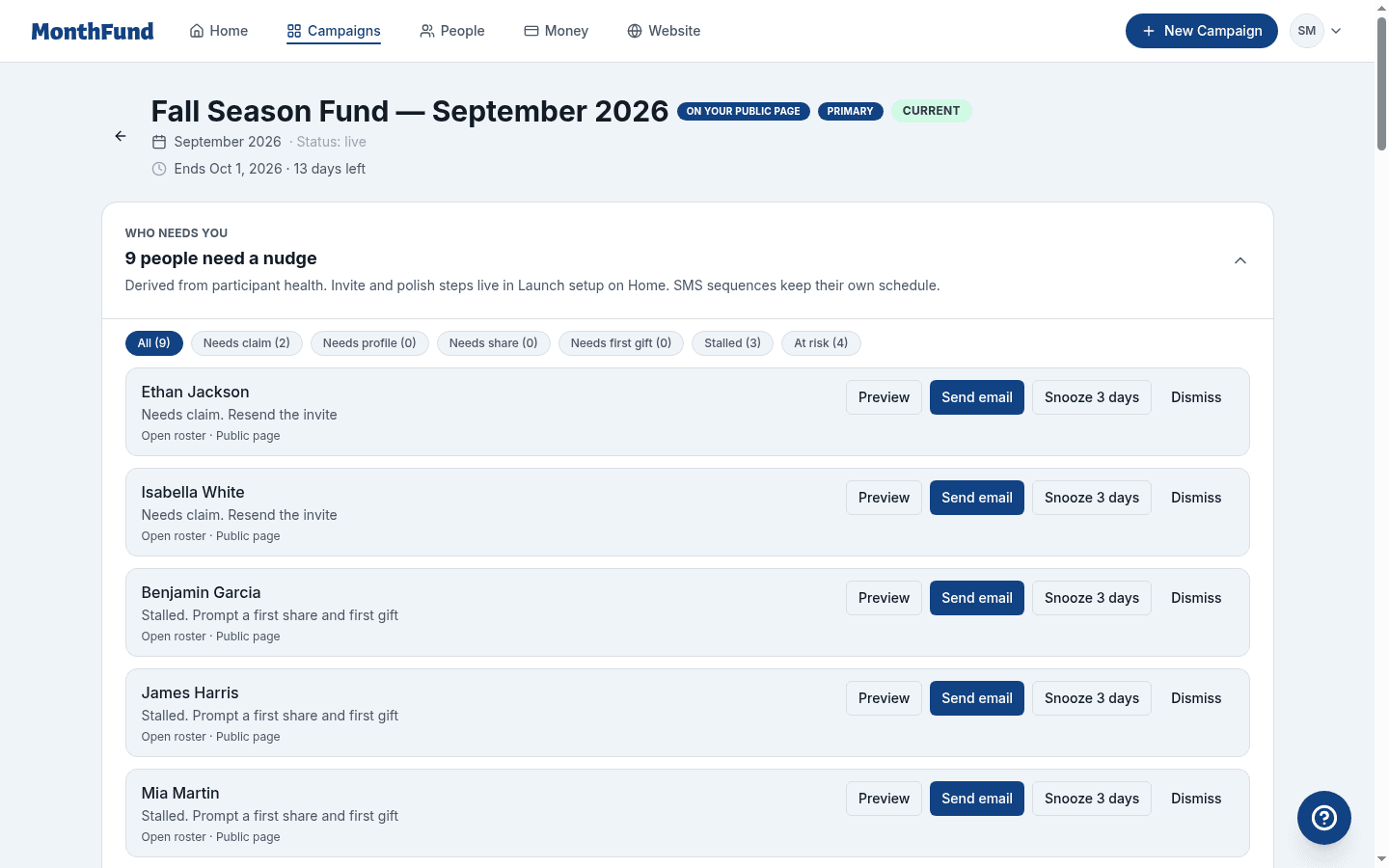
The action queue helps you nudge people who need attention:
- Open your campaign page (click the campaign name from Dashboard).
- Find the "Who needs you" section (the action queue).
- You'll see people organized by what they need:
- Needs to claim invite — Hasn't opened the join link yet
- Needs profile — Joined but didn't finish setup
- Needs first share — Ready but hasn't shared their calendar
- Needs first donation — Sharing but no gifts yet
- Stalled — Was active but has gone quiet
For each person, you can:
- Preview the email you'd send
- Send email to nudge them
- Snooze 3 days to check back later
- Dismiss if no action needed
Send bulk emails by segment
For group-wide messages, use the People page:
- Go to People in the sidebar.
- Use Email by segment to reach specific groups:
- Unconfirmed — Haven't clicked the join link
- Needs profile — Joined but incomplete
- Ready with no donations — Set up but no gifts yet
- Low activity — Some donations but trailing others
- Top performers — Leading the leaderboard
- Write your message and send.
You can also use Email all for campaign-wide announcements.
Included on all organization plans: Community, Professional, and Network all have bulk email and segment email. Automated reminders also run on all plans.
Invite a co-admin (Settings → Team)
Co-admins help you manage the org hub. This is different from inviting fundraisers.
How to invite a co-admin
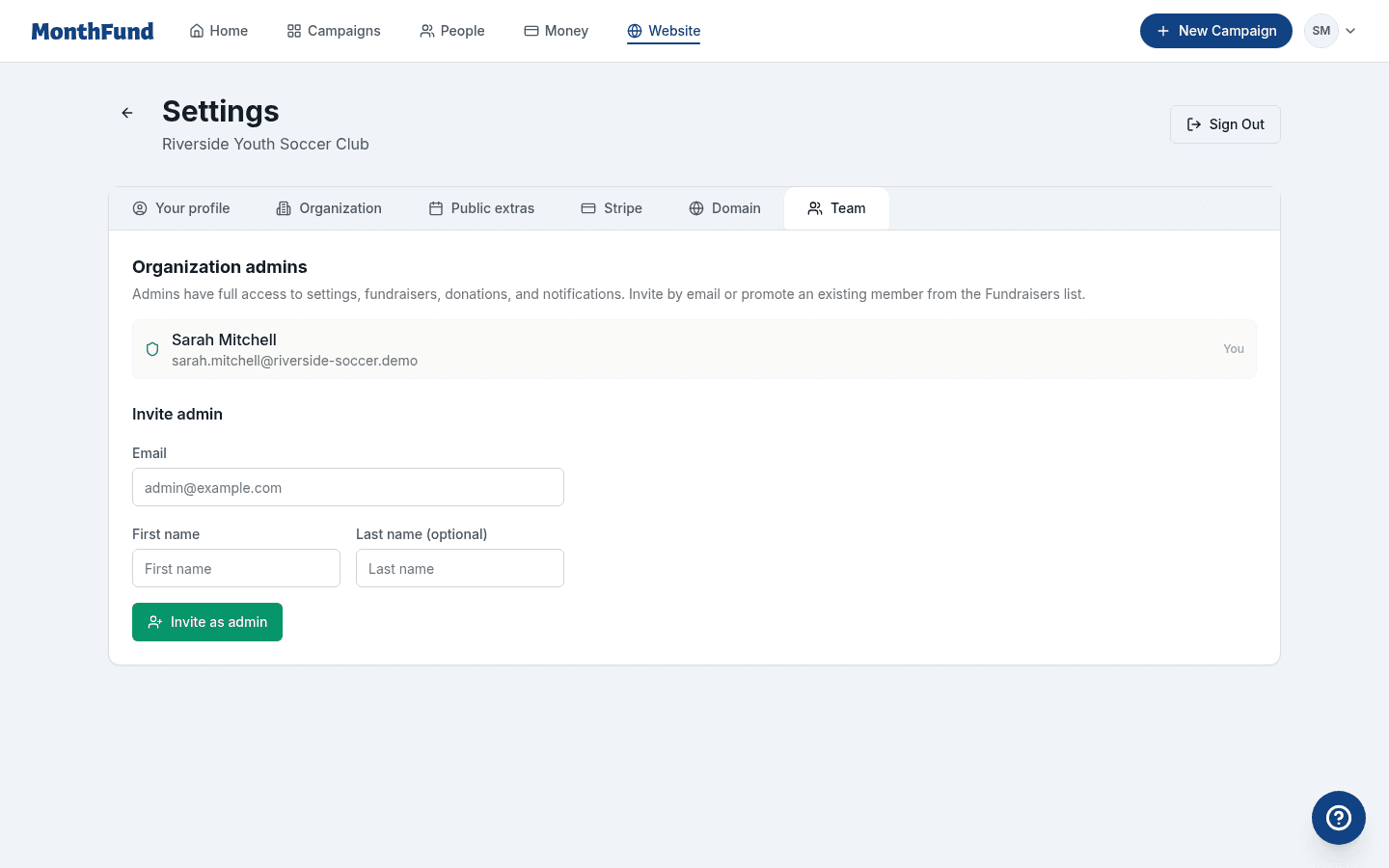
- Go to Settings in the sidebar.
- Click the Team tab.
- Enter the person's name and email.
- Click Invite.
Their invite expires in 24 hours (not 30 days like fundraiser invites).
Admin seat limits by plan
| Plan | Organization admin seats |
|---|---|
| Community (free) | 2 |
| Professional | 3 |
| Network | Unlimited |
If you've reached your limit, upgrade your plan or remove an existing admin to add a new one.
Troubleshooting
Invitation email not arriving
- Ask the person to check their spam/promotions folder.
- Verify the email address is correct in your roster.
- Resend the invitation from the roster.
- If delivery still fails, check the roster row for an error message and contact support.
Join link expired
Fundraiser join links are valid for 30 days. If expired:
- Resend from the roster
- The fundraiser can request a new link at
/login?help=access - Re-adding the same email to the campaign sends a fresh invite
Someone joined but their calendar isn't showing
They may have an incomplete profile. Check their status in the roster:
- Needs profile — Ask them to finish setup
- Ready — Their calendar is live; they may just need to find their Share page
Can one person fundraise for multiple organizations?
Yes. Someone can carry calendars for different organizations. They'll see an organization switcher in their fundraiser dashboard.
Community vs Professional admin seats
| Feature | Community | Professional | Network |
|---|---|---|---|
| Active fundraisers | Up to 50 | Unlimited | Unlimited |
| Org admin seats | 2 | 3 | Unlimited |
| Active campaigns | 2 | Unlimited | Unlimited |
If you need more admin seats or fundraisers, consider upgrading at Settings → Stripe → Upgrade plan.
Next steps
After inviting fundraisers:
- Send a welcome message — Use the campaign announcement or Email all to welcome your team.
- Point people to the launch kit — On the campaign page, the Launch kit has posters, letters, and scripts they can use.
- Watch the action queue — Follow up with anyone who stalls.
- Track progress — The campaign page shows total raised, days claimed, and fundraiser activity.
Ready to help your fundraisers get their first donation? Share the Fundraiser First Donation Checklist with them.
Related resources
Questions? Visit the Help Center or contact support.